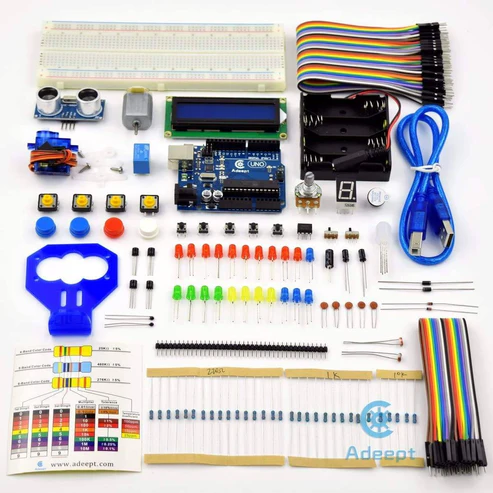
In this project, we will work on a Photoresistor (Photovaristor) which includes the photoelectric effect of the semiconductor. Photovaristor is commonly applied in the measurement of light and light control.
HARDWARE REQUIRED
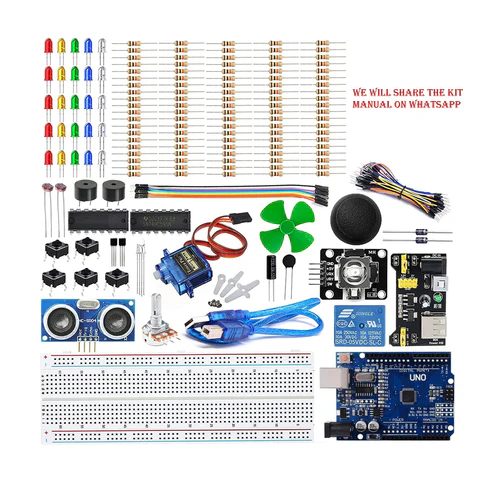
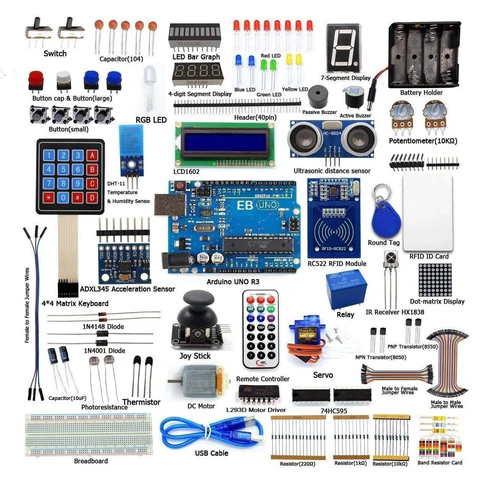
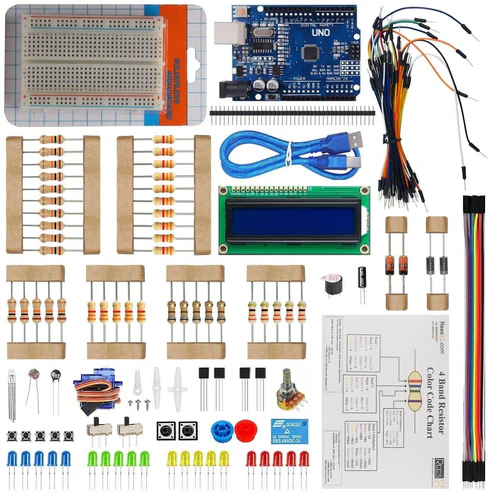
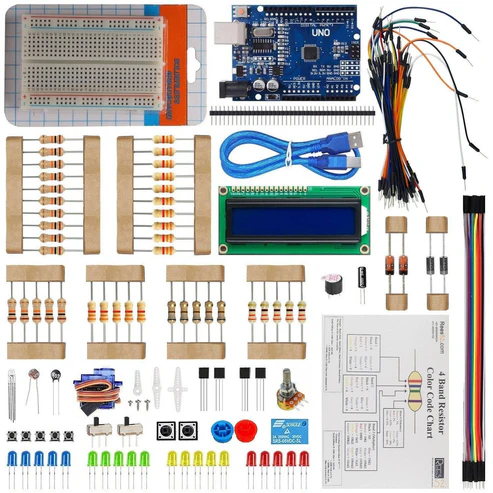
- Arduino UNO with USB cable – 1
- Male to Male jumper wires – 20 pieces
- 9v Battery – 1
- Snapper with DC Jack – 1
- 400 pt. Breadboard – 1
- LDR Photoresistor -2
- 10KΩ Resistor – 5
- 220Ω Resistor – 5
- Led – 2
NOTE: A 9V Battery is used as an external power supply.
SOFTWARE REQUIRED
Arduino IDE 1.8.5 (programmable platform for Arduino)
Click To Download: https://www.arduino.cc/en/Main/Software
CIRCUIT CONNECTION
- Attach LED and LDR on the Breadboard.
- Connect GND of Arduino Uno with Breadboard to make further GND connections.
- Connect 5V Pin of Arduino Uno with the Breadboard for further 5V power supply connections.
- Connect the positive terminal of LED with the Digital Pin 11 of the Arduino Uno.
- Connect the negative terminal of the LED with the GND rail of the Breadboard via the 220Ω resistor.
- Connect one leg of LDR with the 5V power supply rail of the Breadboard via a 10KΩ resistor on one end and connect another end with the Analog Pin A0 of Arduino Uno.
- Connect another leg of the LDR with the GND rail of the Breadboard.
CODE
int potpin=0;// initialize analog pin 0, connected with photovaristor
int ledpin=11;// initialize digital pin 11, output regulating the brightness of LED
int val=0;// initialize variable val
/* The setup() function is called when a sketch starts. It is used to initialize variables, pin modes, start using libraries, etc. This function will only run once, after each power up or reset of the Arduino board. */
void setup()
{
pinMode(ledpin,OUTPUT);// set digital pin 11 as “output”
Serial.begin(9600);// set baud rate at “9600”
}
/* The loop() function executes the program repeatedly until Specified. */
void loop()
{
val=analogRead(potpin);// read the analog value of the sensor and assign it to val
Serial.println(val);// display the value of val
analogWrite(ledpin,val);// turn on the LED and set up brightness(maximum output value 255)
delay(10);// wait for 0.01
}
WORKING AND OUTPUT
Welcome to the Arduino-based project in which we have used the analogWrite (PWM interface, analogue value) function. In this project, we will read the analog value of the potentiometer and assign the value to the PWM port, so there will be a corresponding change to the brightness of the LED. One final part will be displaying the analogue value on the screen. You can consider this as the “analog value reading” project adding the PWM analog value assigning part. After downloading the program, when we rotate the potentiometer knob, we can see changes in the displaying value, also an obvious change in the LED brightness on the breadboard.
Reviews
There are no reviews yet.